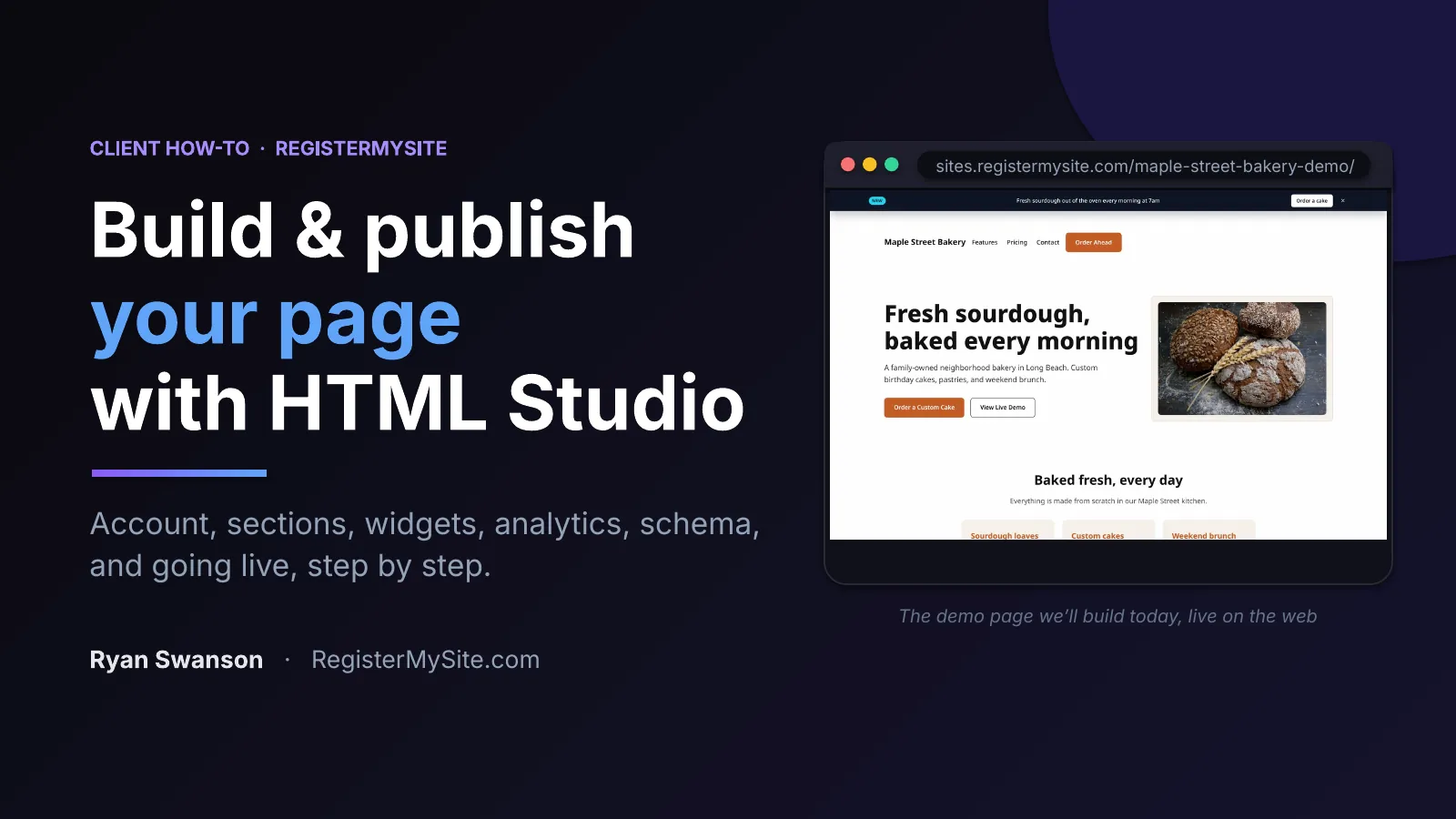
Slide 1: Build & publish your page with HTML StudioAccount, sections, widgets, analytics, schema, and going live.Slide image missing. Download the PDF or PowerPoint.
Slide 2: What is HTML Studio?Form Mode, AI copilot, add-ons, and one-click publish.Slide image missing. Download the PDF or PowerPoint.
Slide 3: Quick tourThree panels and a top bar: sections, editor, preview, add-ons, deploy.Slide image missing. Download the PDF or PowerPoint.
Slide 4: Create your accountSign up at html-studio.registermysite.com.Slide image missing. Download the PDF or PowerPoint.
Slide 5: You're inHow to tell the account worked.Slide image missing. Download the PDF or PowerPoint.
Slide 7: Make it yours — Form ModeEdit a section with forms, no code.Slide image missing. Download the PDF or PowerPoint.
Slide 8: Add new sectionsGrow the page section by section.Slide image missing. Download the PDF or PowerPoint.
Slide 9: Widgets — open Widget StudioChoose a widget such as an announcement bar.Slide image missing. Download the PDF or PowerPoint.
Slide 10: Widgets — set the button & generateConfigure and generate the widget.Slide image missing. Download the PDF or PowerPoint.
Slide 11: Widgets — grab the codeCopy the snippet or export it into the page.Slide image missing. Download the PDF or PowerPoint.
Slide 12: Widgets — move it to the topPlace the widget where customers will see it.Slide image missing. Download the PDF or PowerPoint.
Slide 13: EdgeTrack — create your accountSign up for analytics.Slide image missing. Download the PDF or PowerPoint.
Slide 14: EdgeTrack — add your siteCopy the tracking code.Slide image missing. Download the PDF or PowerPoint.
Slide 15: EdgeTrack — paste into HTML StudioTurn analytics on in the project.Slide image missing. Download the PDF or PowerPoint.
Slide 16: SEO basicsFill in title, description, and basics.Slide image missing. Download the PDF or PowerPoint.
Slide 17: Generate schema markupJSON-LD so Google understands the business.Slide image missing. Download the PDF or PowerPoint.
Slide 18: Check schema, then exportValidate and add it to the page.Slide image missing. Download the PDF or PowerPoint.
Slide 19: Go live — pick your domainOpen Export & Deploy.Slide image missing. Download the PDF or PowerPoint.
Slide 20: Choose your slug & publishPublish slug to go live.Slide image missing. Download the PDF or PowerPoint.
Slide 21: You're liveThe Maple Street Bakery demo on the web.Slide image missing. Download the PDF or PowerPoint.
Slide 22: Your HTML Studio checklistRecap of the steps.Slide image missing. Download the PDF or PowerPoint.
Slide 23: Let's build your page.CTA: html-studio.registermysite.com and contact.Slide image missing. Download the PDF or PowerPoint.